2009-03-19

pv (Pipe Viewer) in action!

Recently I needed to copy a 4GB of data to a 6GB partition (both of which were VirtualBox disks). Remembering my resolution to use pv program (pipe viewer) in such case, I used it this time while copying to see the progress of the whole process. I started with getting the expected size of copied data:
# fdisk -l -u

Disk /dev/sda: 4294 MB, 4294967296 bytes
255 heads, 63 sectors/track, 522 cylinders, total 8388608 sectors
Units = sectors of 1 * 512 = 512 bytes
Disk identifier: 0x664a0e1b

Device Boot Start End Blocks Id System
/dev/sda1 * 63 8369864 4184901 7 HPFS/NTFS

Disk /dev/sdb: 6442 MB, 6442450944 bytes
255 heads, 63 sectors/track, 783 cylinders, total 12582912 sectors
Units = sectors of 1 * 512 = 512 bytes
Disk identifier: 0x00000000

Disk /dev/sdb doesn't contain a valid partition table

Next, after consulting the pv's manual, I used it as a filter between two dd programs (one for reading from the source and one for writing to the destination). I played a bit with pv's -B option (which specifies the size of internal buffer), but it turned out the default size was the best. Anyway, the progress I achieved looked like this:

# dd if=/dev/sda bs=4096 | pv -pterb -s 4294967296 -B 4096 | dd of=/dev/sdb bs=4096
35.5MB 0:00:20 [1.61MB/s] [> ] 0% ETA 0:41:38
8469+0 records in
8468+0 records out
34684928 bytes (35 MB) copied, 20.6268 s, 1.7 MB/s
8451+0 records in
8451+0 records out
34615296 bytes (35 MB) copied, 20.6437 s, 1.7 MB/s

Pretty neat IMHO, just what I wanted. Now I only need to remember the parameters for another use: "pterb" for progress, and "-s" for size...

2009-02-28

Graphical vi Cheat Sheet and Tutorial

Finally I've found it again! It's here:
http://www.viemu.com/a_vi_vim_graphical_cheat_sheet_tutorial.html

Well, actually, it's quite easy to find if one knows what to ask google about.

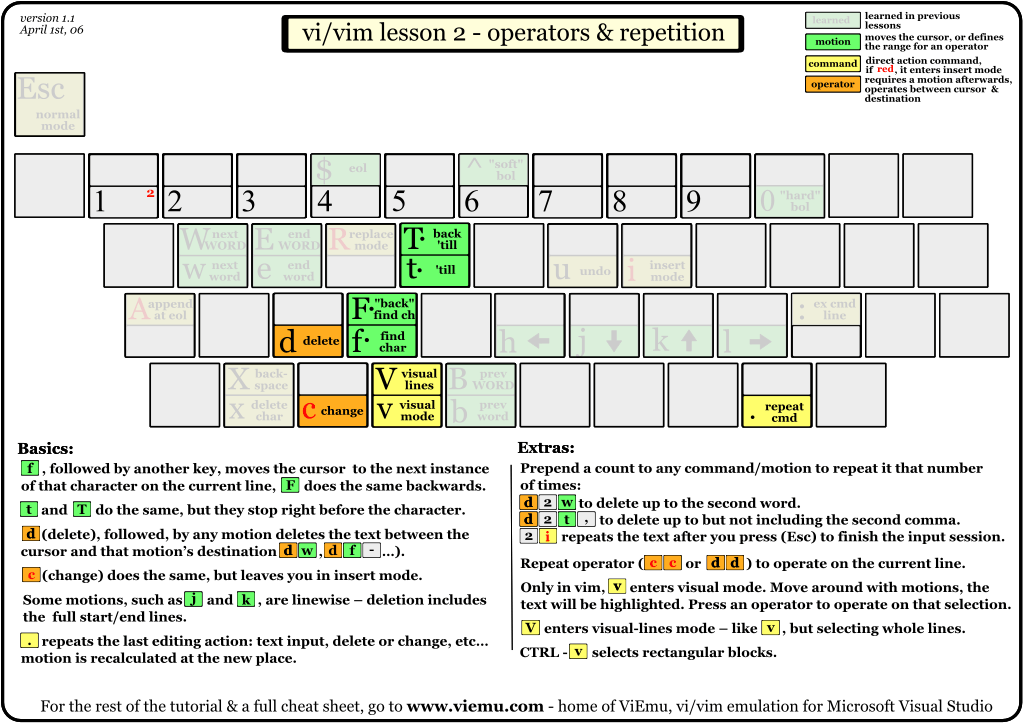
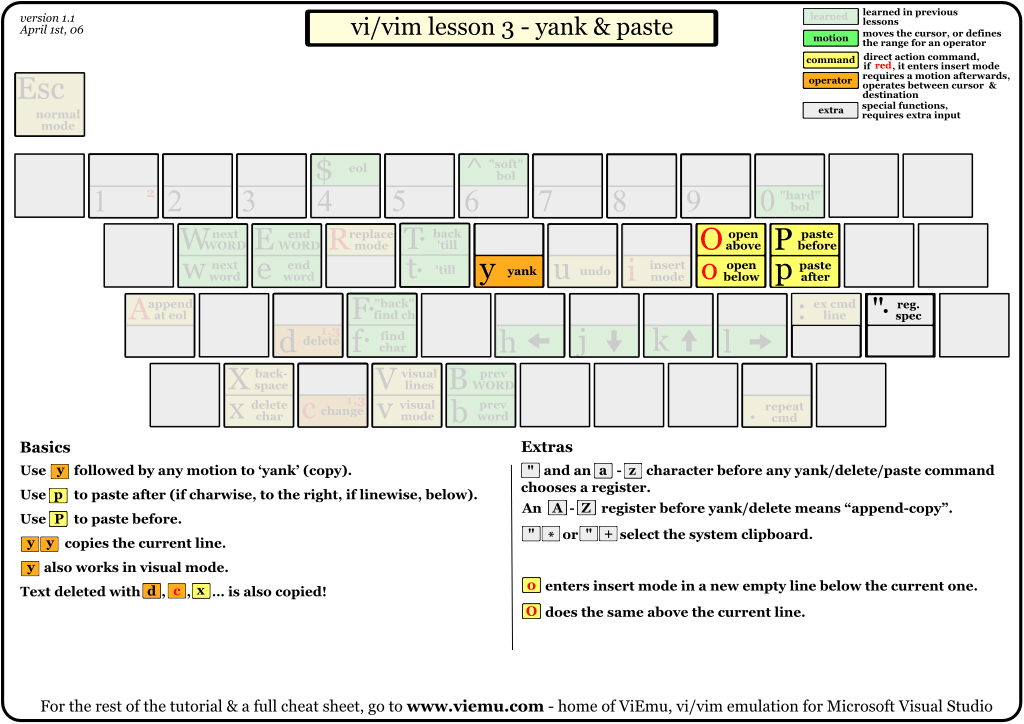
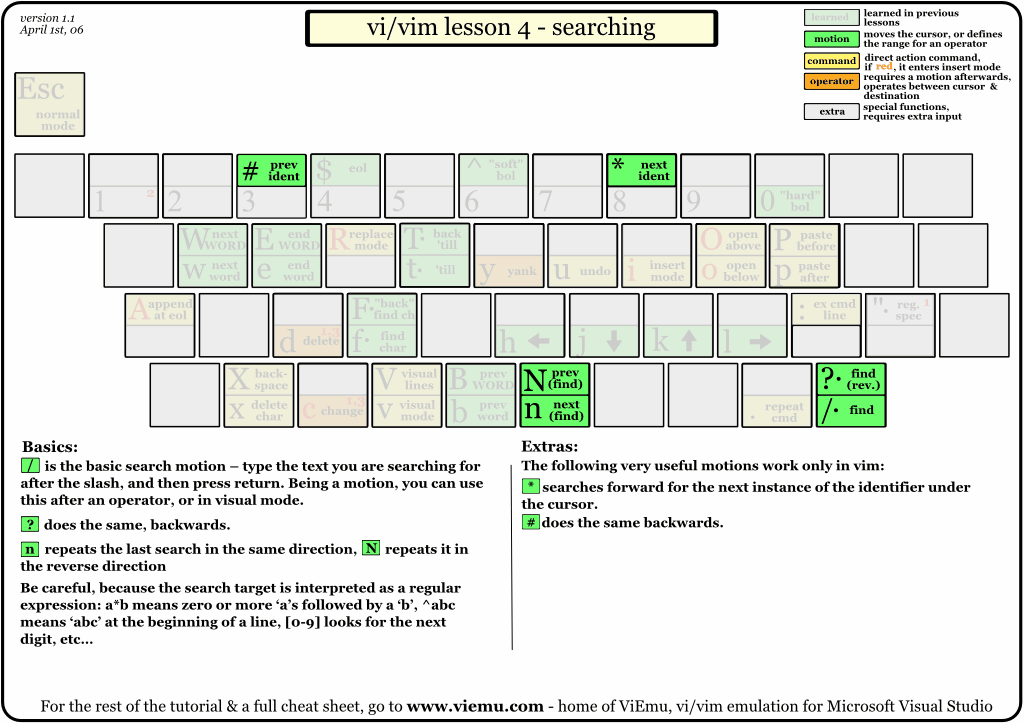
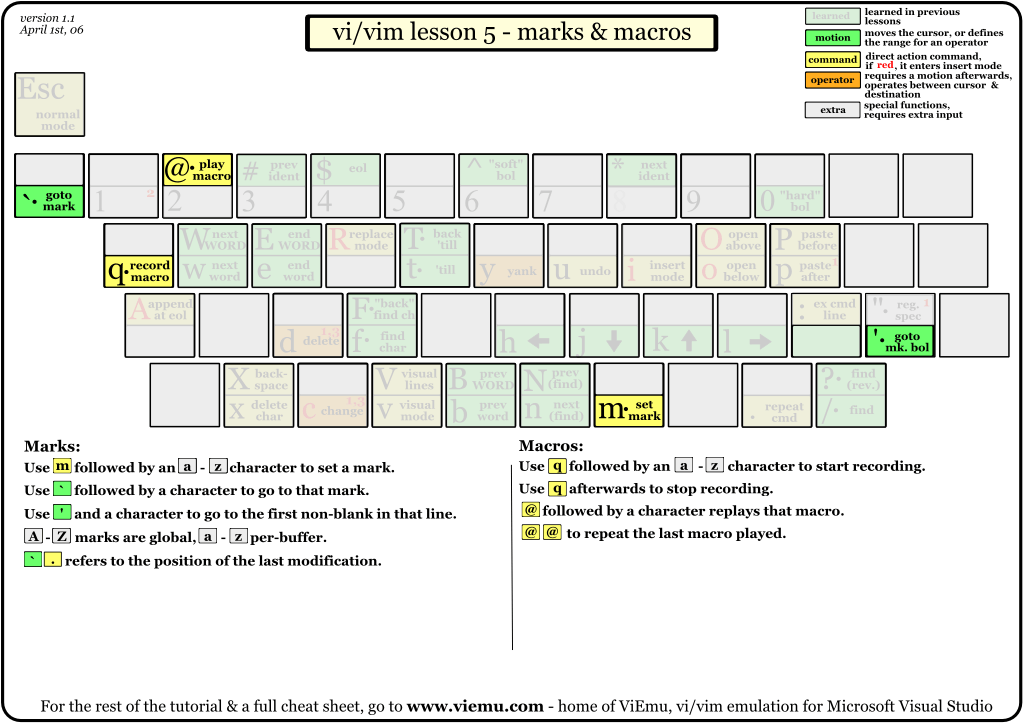
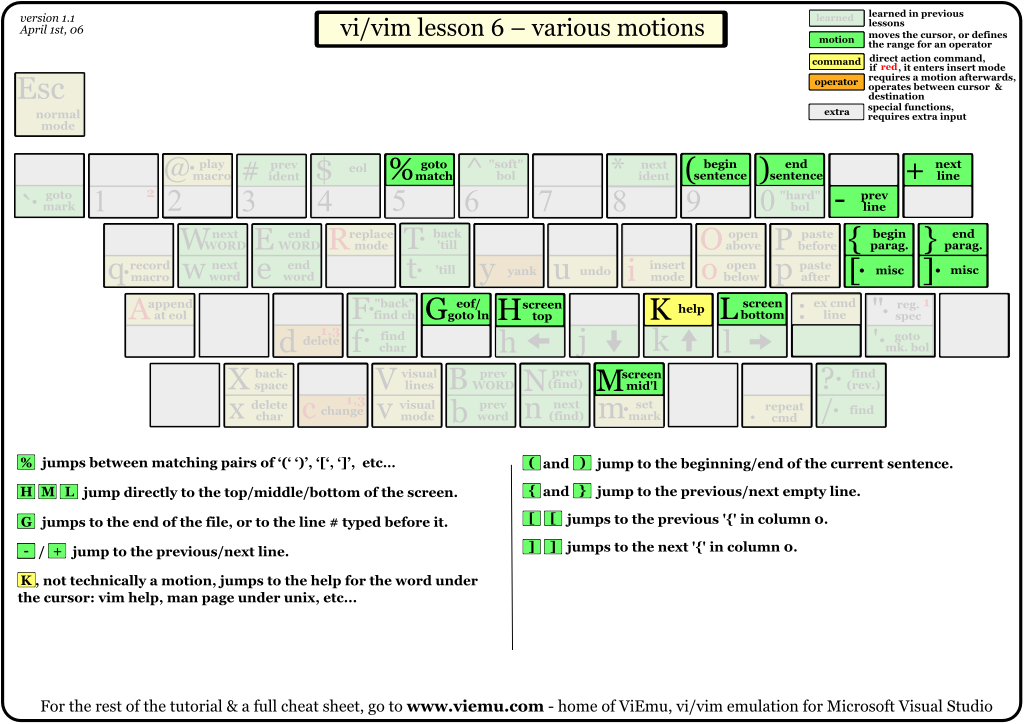
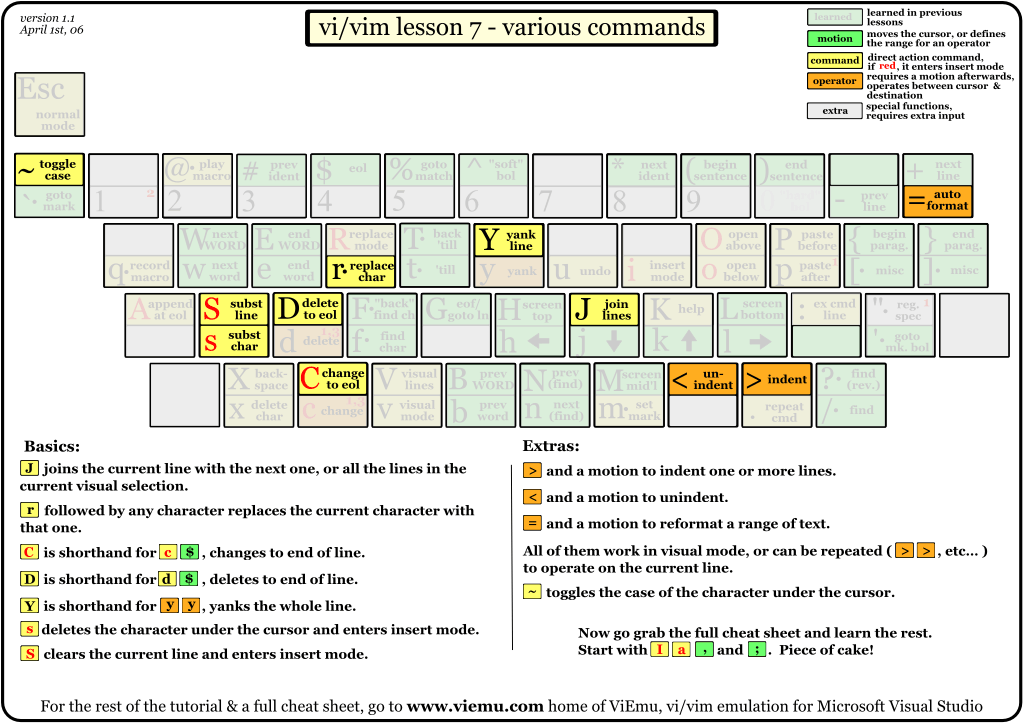
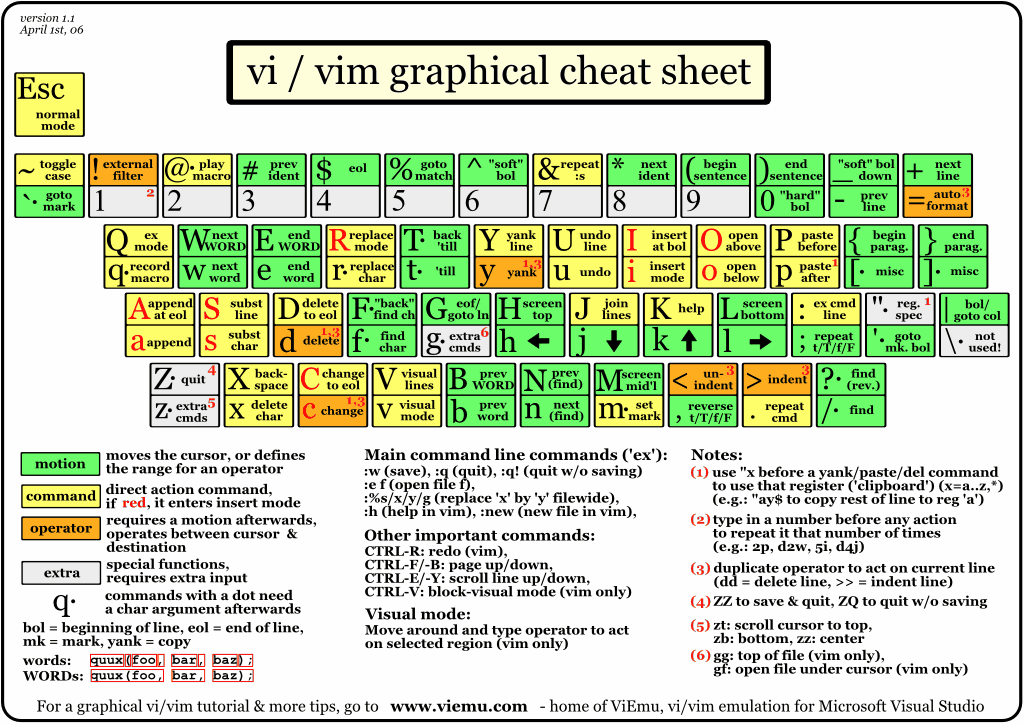
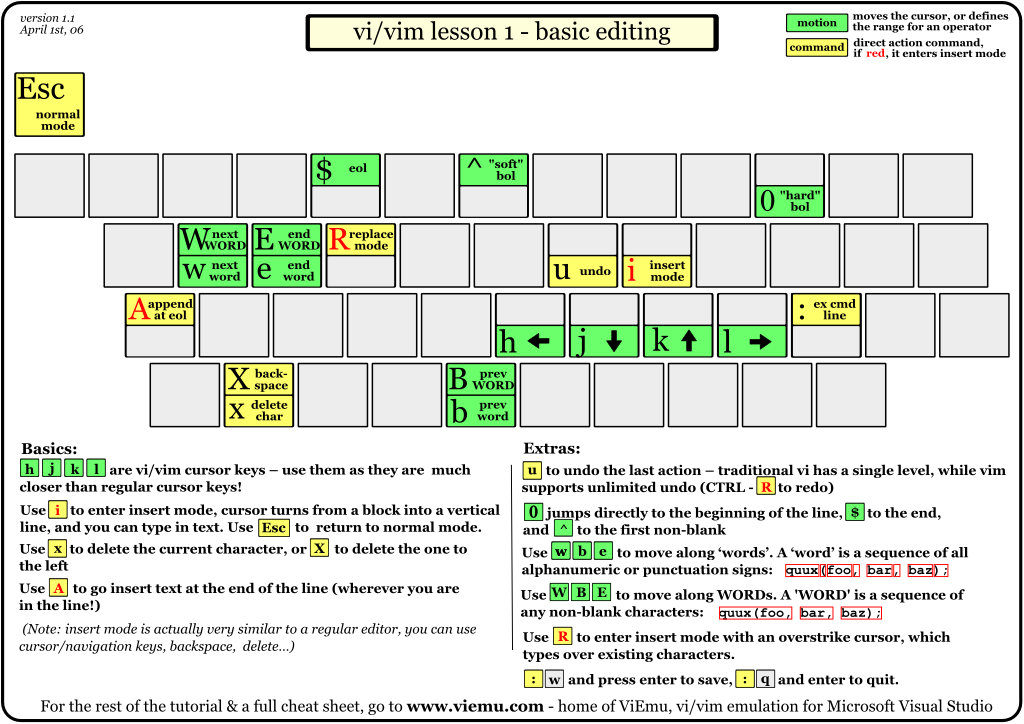
And I really like those pictures, they come as lessons (see below) and they finish with a final cheat sheet, ready for printing.

Lessons:

1.   2.   3.   4.

5.   6.   7.

Result (all lessons in one page):

2009-02-16

Ironic view at software diagramming

http://www.theregister.co.uk/2007/08/16/verity_stob_software_diagramming/

Somewhat funny look at different diagramming techniques over the course of years. I suspect the author's experience cannot let him feel the 'real' power of UML to use it correctly. Although UML is far from perfect, it's the best we have now (similiar to what Churchill has said about democracy).

But anyway, there is a hidden gem in the above article, a link to an open-source State Machine Compiler: http://smc.sourceforge.net/

2009-02-08

pv (Pipe Viewer)

http://www.debianadmin.com/pv-pipe-viewer-shell-pipeline-element-to-meter-data-passing-through.html

Sometimes there is a need to copy lots of data verbatim. In Linux the easiest way is to use dd command for it, or dd_rescue in case of errors. However, original dd has one drawback, namely it's not possible to know its progress until it finishes. Copying partition images with size in 30-40 GB range is boring, because the commands starts, disk LED is flashing, and nothing is displayed. The aforementioned pv has a lot of potential in my eyes, because it brings long awaited progress information.

Since I haven't copied big files using dd recently, I cannot predict whether it would work (most probably yes). But when the need arises, I'm definitely going to use pv in combination with dd to possibly get a nice progress info. :-)

How to customize NetBeans look and feel

A good overview of possible options for custom look and feel in NetBeans can be found here:

http://javahowto.blogspot.com/2008/05/how-to-customize-netbeans-look-and-feel.html

Apart from original tip concerning MetalLookAndFeel, the above is a nice source of ideas, which I like a lot. :-)

2009-02-07

Logout Vista button required 43 people

I read this once but I lost the URL, and now I've found it! It's an old one, but a good one:

http://moishelettvin.blogspot.com/2006/11/windows-shutdown-crapfest.html

And the moral of this story? Weekly meetings, multiple layers of management and the end result which people still don't like much. Shame on you, Microsoft. :-(

2009-02-04

Working arrow keys in VMWare Player

http://aldeby.org/blog/index.php/arrow-keys-not-working-with-vmware.html

That's a simple fix for VMWare, which doesn't recognize a changed method of handling keyboard keys in new XServer.

you may experience some problems with arrow keys, pg up/pg down and home/end keys with vmware 6.5 and Ubuntu Linux Intrepid 8.10.

a workaround for those problems is to create a file named config under .vmware folder in your home directory and fill it with the following text:

xkeymap.keycode.108 = 0x138 # Alt_R
xkeymap.keycode.106 = 0x135 # KP_Divide
xkeymap.keycode.104 = 0x11c # KP_Enter
xkeymap.keycode.111 = 0x148 # Up
xkeymap.keycode.116 = 0x150 # Down
xkeymap.keycode.113 = 0x14b # Left
xkeymap.keycode.114 = 0x14d # Right
xkeymap.keycode.105 = 0x11d # Control_R
xkeymap.keycode.118 = 0x152 # Insert
xkeymap.keycode.119 = 0x153 # Delete
xkeymap.keycode.110 = 0x147 # Home
xkeymap.keycode.115 = 0x14f # End
xkeymap.keycode.112 = 0x149 # Prior
xkeymap.keycode.117 = 0x151 # Next
xkeymap.keycode.78 = 0x46 # Scroll_Lock
xkeymap.keycode.127 = 0x100 # Pause
xkeymap.keycode.133 = 0x15b # Meta_L
xkeymap.keycode.134 = 0x15c # Meta_R
xkeymap.keycode.135 = 0x15d # Menu


Other solutions: