Showing posts with label windows. Show all posts

2018-07-29

How to Rebuild BCD in Windows

A long day of searching (which is typical) for how to fix the non-booting Windows 10 installation.

Eventually I've found the following procedure, which simply just worked.
The best thing only the Option 1 (the simplest) was necessary in my case :)

  1. Start Advanced Startup Options if you're using Windows 10 or Windows 8.
    Start System Recovery Options if you're using Windows 7 or Windows Vista.
  2. Open Command Prompt from Advanced Startup Options or System Recovery Options menu.
  3. At the prompt, type the bootrec command as shown below and then press Enter:
    bootrec /rebuildbcd
    
    The bootrec command will search for Windows installations not included in the BCD and then ask you if you'd like to add one or more to it.
  4. You should see one of the following messages at the command line.

    1. Option 1
      Scanning all disks for Windows installations.
      Please wait, since this may take a while...
      Successfully scanned Windows installations.
      Total identified Windows installations: 0
      The operation completed successfully.
      
      Option 2
      Scanning all disks for Windows installations.
      Please wait, since this may take a while...
      Successfully scanned Windows installations.
      Total identified Windows installations: 1
      [1] C:\Windows
      Add installation to boot list? Yes/No/All:
      
    2. If you see Option 1: Move on to Step 5. This result most likely means that Windows installation data in the BCD store exists but bootrec couldn't find any additional installations of Windows on your computer to add to the BCD. That's fine; you'll just need to take a few extra steps to rebuild the BCD.
    3. If you see option 2: Enter Y or Yes to the Add installation to boot list? question, after which you should see The operation completed successfully, followed by a blinking cursor at the prompt. Finish up with Step 10 toward the bottom of the page.

Read the whole post:
https://www.lifewire.com/how-to-rebuild-the-bcd-in-windows-2624508

2018-04-28

Try changing HPET settings to improve your PC's performance

You need to run the following commands on the command line in Windows to enable or disable the exclusive use of the HPET timer.
  • Tap on the Windows-key, enter cmd, right-click cmd.exe in the results listing and select to run the command prompt with administrative privileges.
  • To enable HPET as the only timer run the command:
    bcdedit /set useplatformclock true
  • To disable HPET in Windows run the command:
    bcdedit /deletevalue useplatformclock
https://www.ghacks.net/2013/04/18/try-changing-hpet-settings-to-improve-your-pcs-performance/

AnandTech article about impact of High Performance Event Timer (HPET)
A Timely Discovery: Examining Our AMD 2nd Gen Ryzen Results

2018-02-22

The Pros and Cons of Windows 10’s "Fast Startup" Mode

Why You Might Want to Disable Fast Startup

[...] Fast Startup also has its problems, so you should take the following caveats into consideration before enabling it:

  • When Fast Startup is enabled, your computer doesn’t perform a regular shut down. Since applying new system updates often requires a shutdown, you may not be able to apply updates and turn your computer off. Restart is unaffected, though, so it still performs a full cold shutdown and restart of your system. If a shutdown doesn’t apply your updates, a restart still will.
  • Fast Startup can interfere slightly with encrypted disk images. Users of encryption programs like TrueCrypt have reported that encrypted drives they had mounted before shutting down their system were automatically remounted when starting back up. The solution for this is just to manually dismount your encrypted drives before shutting down, but it is something to be aware of. (This doesn’t affect the full disk encryption feature of TrueCrypt, just disk images. And BitLocker users shouldn’t be affected.)
  • Systems that don’t support hibernation won’t support Fast Startup either. Some devices just don’t play well with hibernation. You’ll have to experiment with it to see whether your devices respond well or not.
    When you shut down a computer with Fast Startup enabled, Windows locks down the Windows hard disk. You won’t be able to access it from other operating systems if you have your computer configured to dual-boot. Even worse, if you boot into another OS and then access or change anything on the hard disk (or partition) that the hibernating Windows installation uses, it can cause corruption. If you’re dual booting, it’s best not to use Fast Startup or Hibernation at all.
  • Depending on your system, you may not be able to access BIOS/UEFI settings when you shut down a computer with Fast Startup enabled. When a computer hibernates, it does not enter a fully powered down mode. Some versions of BIOS/UEFI work with a system in hibernation and some do not. If yours doesn’t, you can always restart the computer to access BIOS, since the restart cycle will still perform a full shutdown.
https://www.howtogeek.com/243901/the-pros-and-cons-of-windows-10s-fast-startup-mode/


2017-03-12

Clear the Windows Update Download cache

You probably need to clear the Windows Update Download cache (I had to do this to get 15046 to appear).

net stop wuauserv
cd %systemroot%\SoftwareDistribution
rmdir /S /Q Download
net start wuauserv
net stop bits
net start bits
net stop cryptsvc
cd %systemroot%\system32
rmdir /S /Q catroot2
net start cryptsvc


Reboot.

https://answers.microsoft.com/en-us/insider/forum/insider_wintp-insider_install/install-of-15042-reboots-at-71-to-15031/a640c8f4-b93c-46fb-9aee-4d302f00eadf

2017-03-11

"Reclaim Windows 10"

Brilliant :)
"Reclaim Windows 10" turns off a bunch of unnecessary Windows 10 telemetery, removes bloatware, and privacy invasions. Review and tweak before running. Scripts for reversing are included and commented. Fork via https://github.com/Disassembler0 (different defaults)

Original: https://gist.github.com/alirobe/7f3b34ad89a159e6daa1

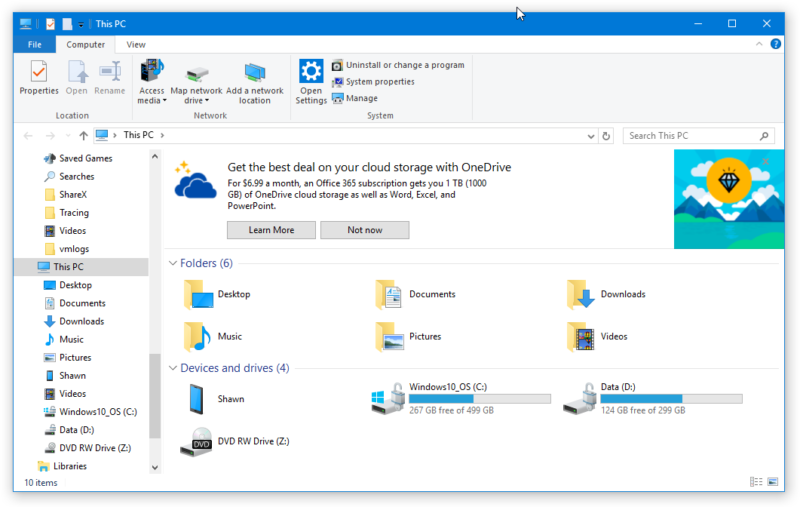
Advertising in Windows Explorer (Win10)

Advertising in Windows has reached an exasperating new low

Blinken

How to turn it off:
In File Explorer go to View > Options > Change Folder and search options.
Go to the View tab and scroll down about 3/4 of the way and turn off the option for 'Show sync provider notifications'.

https://arstechnica.com/information-technology/2017/03/microsoft-put-gross-ads-in-windows-explorer-and-i-dont-have-the-energy-to-be-angry/?comments=1&post=32960539

2014-04-16

Windows 8.1 Safe Mode

Three articles (of many) about how to run Windows 8.1 in Safe Mode or turn on/off permanently ability to select that upon system boot.

2013-05-18

Boot Windows 8 into Safe Mode

As you may have noticed, Microsoft has disabled the standard method of accessing Safe Mode in Windows 8 in favor of a new Modern UI system. In other words, you can no longer press F8 during the Windows start up sequence and access the black and white Advanced Boot Options menu system from which you can select Safe Mode. Microsoft's justification for disabling the F8 key is essentially that computers boot up so fast these days that people will have trouble pressing F8 before Windows starts.

To be able to use F8 to get to Safe Mode, in Administrator Command Prompt type the command:

bcdedit /set {default} bootmenupolicy legacy
http://www.techrepublic.com/photos/boot-windows-8-into-safe-mode/6414603?seq=11

2012-11-30

2012-07-09

Log-off, restart and power-off in Windows 8

Recently I've installed a Release Preview of Windows 8 in virtual machine. Luckily apart from completely new Start menu, all other major features are similar to Windows 7. Also the new Windows Explorer includes the scenic ribbon, which I prefer much more than previous "hidden-until-alt-key-pressed" regular menu.

But there are some basic things in Windows 8 I needed to re-learn, even though I find it unnecessary to be so complicated (compared to previous Windows):

  • Power options: (restart, hibernate and power-off)
  • Logging off
  • Swithing users (WinLogo+L)

To find how to turn off the system I needed to consult Windows Help (it proved to be helpful this time). But to find out how to use new "Sign-out" function I needed to use Google for it, but again I've found what I was looking for:

http://www.askvg.com/how-to-log-off-restart-and-shut-down-windows-8-pc/

To be honest, sign-off is now similar to web e-mail programs, where one needs to click user account image to close the session (okay, I consider this to be a slight improvement). But putting power options inside a hidden, pop-up vertical bar of new Start menu is way too complicated! Since Windows 95 a user needed just to click "Start" to find option to close the system - now it's so well hidden I suppose less experienced users will just pull the physical plug than to find where the damned power-off button is.

2011-02-13

Stop UAC blacking out the screen

Yeah, my current Acer laptop is not too fast one (compared to my wife's ASUS). And one thing that annoyed me for a long time in Windows 7 was the UAC prompt displaying terribly slow. Today I've had a bit of time to google around, and here's what I've found:
The DisableSecureDesktop Registry Hack from the How-To Geek indeed works very well.
Cool :-)

2010-01-05

Activate Windows 7's Hidden 'God Mode'

Handy trick if you're setting up a machine for the first time and need to access many settings:


  1. Create a new folder
  2. Name it: GodMode.{ED7BA470-8E54-465E-825C-99712043E01C}
  3. That's it

http://www.osnews.com/story/22691/Activate_Windows_7_s_Hidden_God_Mode_

2009-05-16

Windows7 UAC whitelist: code-injection vulnerability (and more)

And when I thought the RC for Windows 7 is going to be a hit, it turns out that while running an administrative account, most of original Windows 7 .exe's auto-eleviate their rights by default, without asking user for a permission. Given that many people are accustomed to run on administrative accounts, this poses a security hole.

More: http://www.pretentiousname.com/misc/win7_uac_whitelist2.html

2008-08-10

Microsoft's plans for post-Windows OS revealed

The new name is Midori, and it's going to be a new OS without Windows legacy:

http://www.sdtimes.com/MICROSOFT_S_PLANS_FOR_POST_WINDOWS_OS_REVEALED/About_CLOUDCOMPUTING_and_MOBILEDEVELOPMENT_and_NET_and_SOASAAS_and_SOFTWAREDEVELOPMENT_and_WINDOWS_and_MICROSOFT/32627

I just wonder if any other visionary would create such a new operating system, similarly to what Linus Torvalds once did? And at the same time I doubt it, alas.

2008-05-11

Fixing Windows Vista

Ed Bott’s Microsoft Report - ZDNet

Fixing Windows Vista, one machine at a time
http://blogs.zdnet.com/Bott/?p=429

Fixing Windows Vista, Part 2: Taming UAC
http://blogs.zdnet.com/Bott/?p=436

Taming Vista's User Account Control
http://content.zdnet.com/2346-12354_22-199468.html?tag=gald

Fixing Windows Vista, Part 3: Top Troubleshooting Tools
http://blogs.zdnet.com/Bott/?p=437