https://thisdavej.com/right-click-on-windows-folder-and-open-with-visual-studio-code/
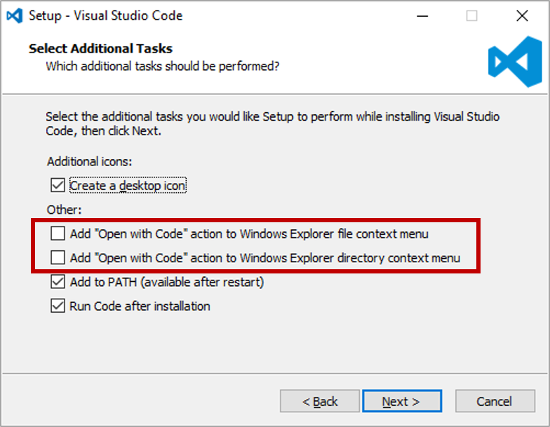
Major Edit: It turns out that when you install VS Code for Windows, you have an opportunity to add an “Open with Code” action to the Windows Explorer file context menu—if you don’t hastily sprint through the installation and take the defaults like I did the first time around. 🙂 Take a deep breath and jog rather than scream through the installation. When you see the dialog box below, be sure to check the two checkboxes highlighted.
A. Manually add VSCode shortcuts to context menu when it is installed in C:\Program Files folder
vsCodeOpenFolder.reg
Windows Registry Editor Version 5.00
; Open files
[HKEY_CLASSES_ROOT\*\shell\Open with VS Code]
@="Edit with VS Code"
"Icon"="C:\\Program Files\\Microsoft VS Code\\Code.exe,0"
[HKEY_CLASSES_ROOT\*\shell\Open with VS Code\command]
@="\"C:\\Program Files\\Microsoft VS Code\\Code.exe\" \"%1\""
; This will make it appear when you right click ON a folder
; The "Icon" line can be removed if you don't want the icon to appear
[HKEY_CLASSES_ROOT\Directory\shell\VSCode]
@="Open Folder as VS Code Project"
"Icon"="\"C:\\Program Files\\Microsoft VS Code\\Code.exe\",0"
[HKEY_CLASSES_ROOT\Directory\shell\VSCode\command]
@="\"C:\\Program Files\\Microsoft VS Code\\Code.exe\" \"%1\""
; This will make it appear when you right click INSIDE a folder
; The "Icon" line can be removed if you don't want the icon to appear
[HKEY_CLASSES_ROOT\Directory\Background\shell\VSCode]
@="Open Folder as VS Code Project"
"Icon"="\"C:\\Program Files\\Microsoft VS Code\\Code.exe\",0"
[HKEY_CLASSES_ROOT\Directory\Background\shell\VSCode\command]
@="\"C:\\Program Files\\Microsoft VS Code\\Code.exe\" \"%V\""
removeVsCodeOpenFolder.reg
Windows Registry Editor Version 5.00

[-HKEY_CLASSES_ROOT\*\shell\Open with VS Code]
[-HKEY_CLASSES_ROOT\*\shell\Open with VS Code\command]
[-HKEY_CLASSES_ROOT\Directory\shell\VSCode]
[-HKEY_CLASSES_ROOT\Directory\shell\VSCode\command]
[-HKEY_CLASSES_ROOT\Directory\Background\shell\VSCode]
[-HKEY_CLASSES_ROOT\Directory\Background\shell\VSCode\command]
B. When Visual Studio Code is installed in C:\VSCode folder
vsCodeOpenFolder_C.reg
Windows Registry Editor Version 5.00
; Open files
[HKEY_CLASSES_ROOT\*\shell\Open with VS Code]
@="Edit with VS Code"
"Icon"="C:\\VSCode\\Code.exe,0"
[HKEY_CLASSES_ROOT\*\shell\Open with VS Code\command]
@="\"C:\\VSCode\\Code.exe\" \"%1\""
; This will make it appear when you right click ON a folder
; The "Icon" line can be removed if you don't want the icon to appear
[HKEY_CLASSES_ROOT\Directory\shell\VSCode]
@="Open Folder as VS Code Project"
"Icon"="\"C:\\VSCode\\Code.exe\",0"
[HKEY_CLASSES_ROOT\Directory\shell\VSCode\command]
@="\"C:\\VSCode\\Code.exe\" \"%1\""
; This will make it appear when you right click INSIDE a folder
; The "Icon" line can be removed if you don't want the icon to appear
[HKEY_CLASSES_ROOT\Directory\Background\shell\VSCode]
@="Open Folder as VS Code Project"
"Icon"="\"C:\\VSCode\\Code.exe\",0"
[HKEY_CLASSES_ROOT\Directory\Background\shell\VSCode\command]
@="\"C:\\VSCode\\Code.exe\" \"%V\""